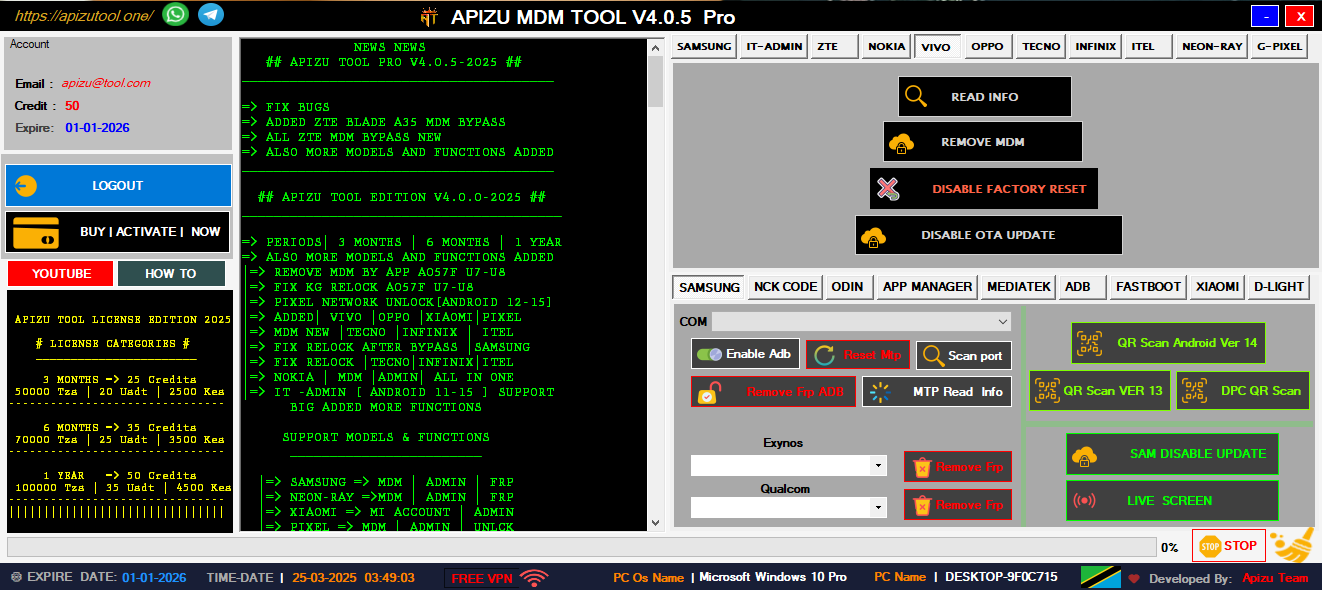
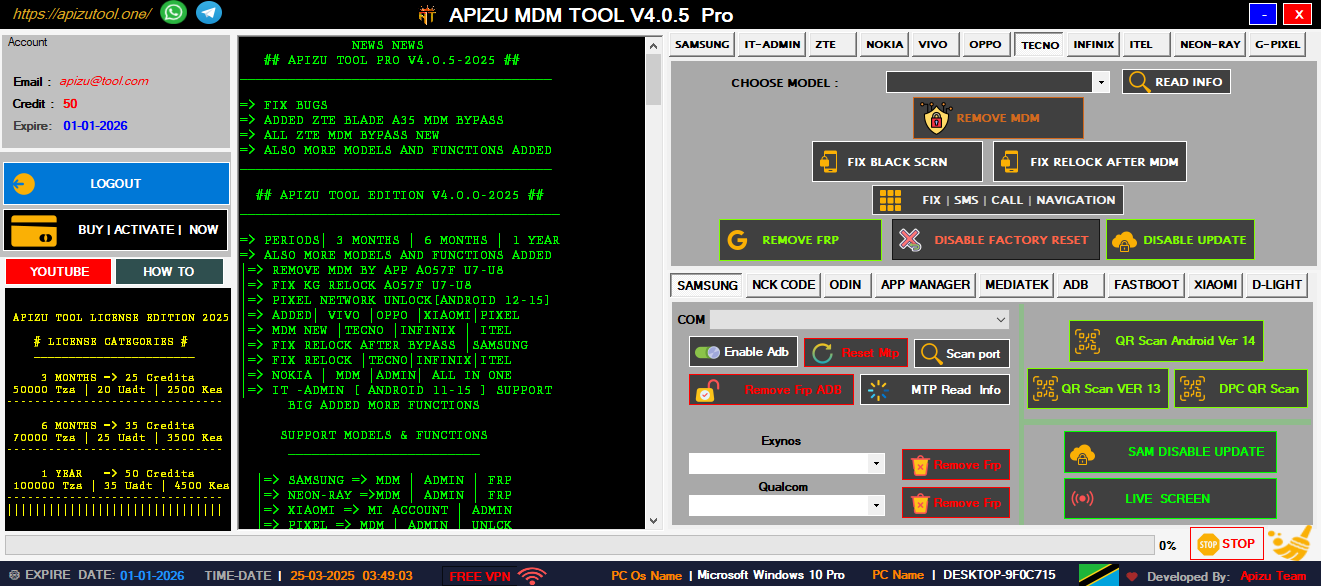
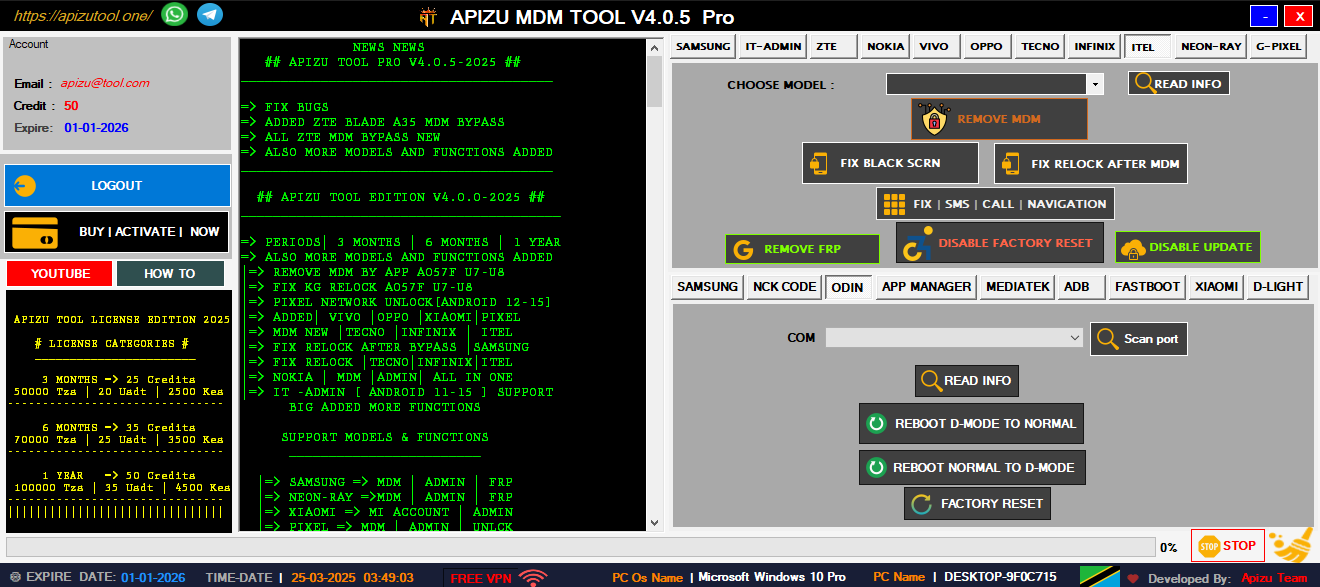
Remove Samsung MDM lock and regain full device access with advanced bypass techniques.
Quick and secure QR code scanning for unlocking and configuration tools.
Bypass Google account lock on various Android devices easily and securely.
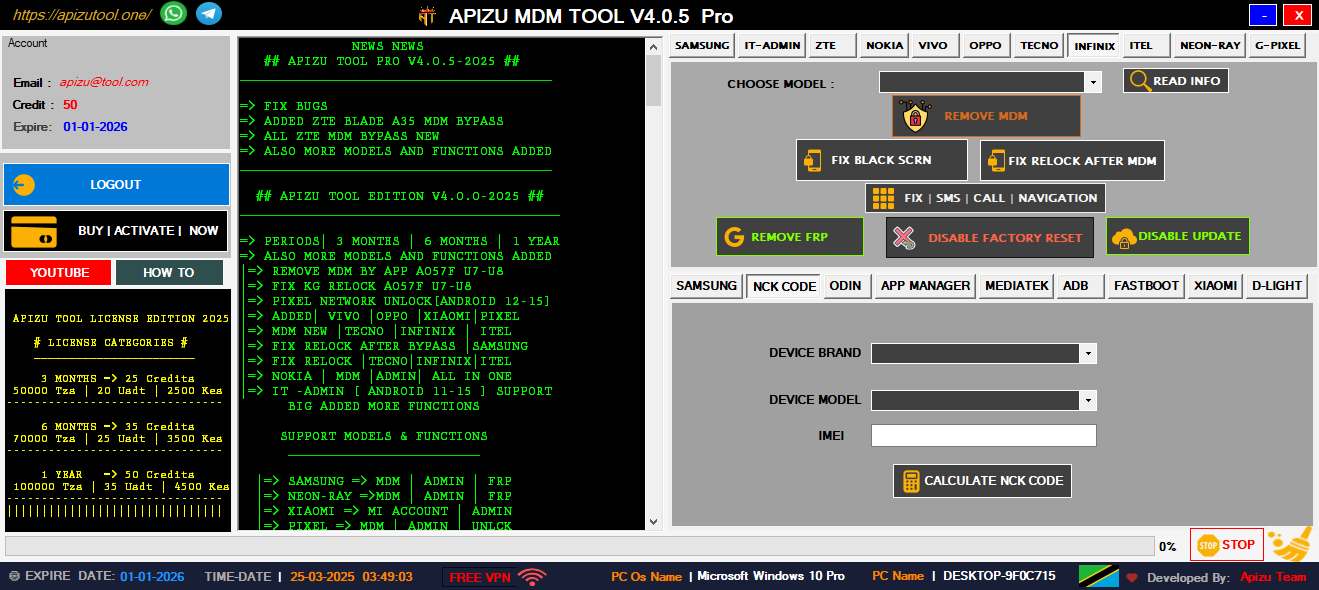
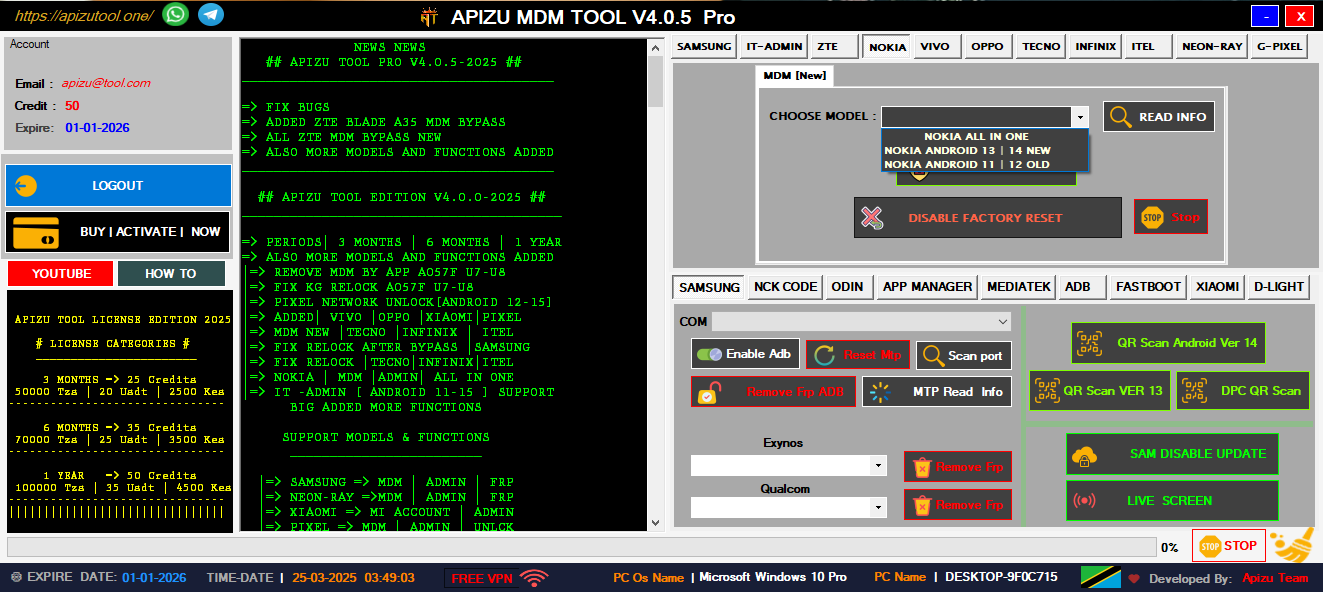
Unlock and manage devices from Nokia, Tecno, Infinix, and more brands.
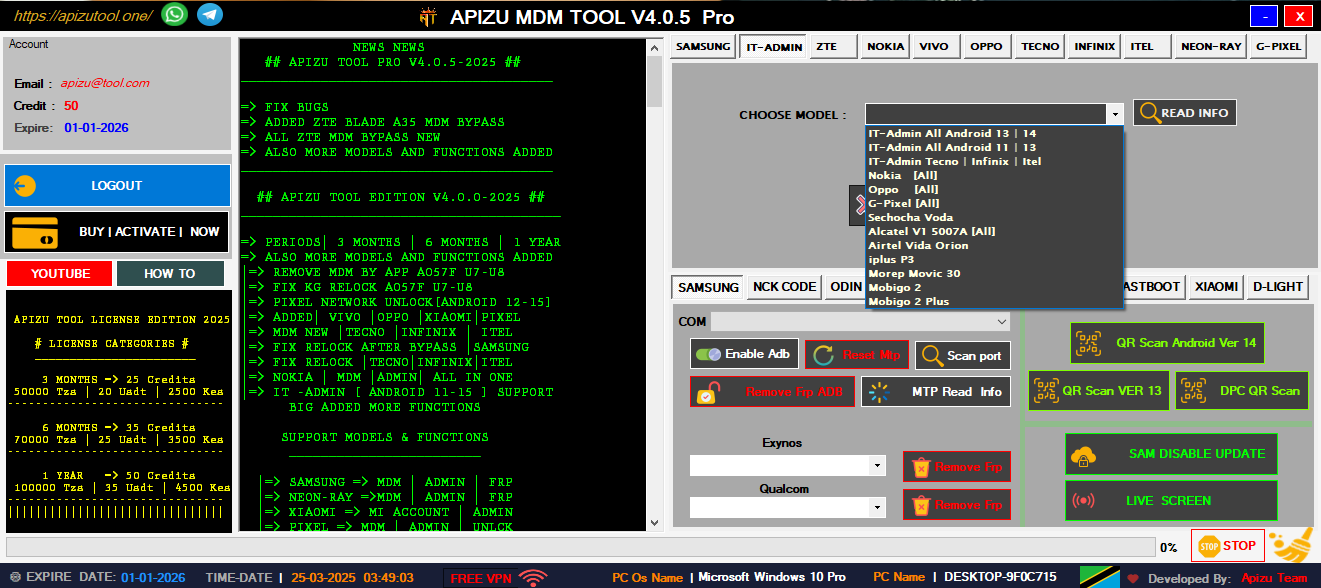
Complete IT tools for managing and unlocking all Android devices easily.
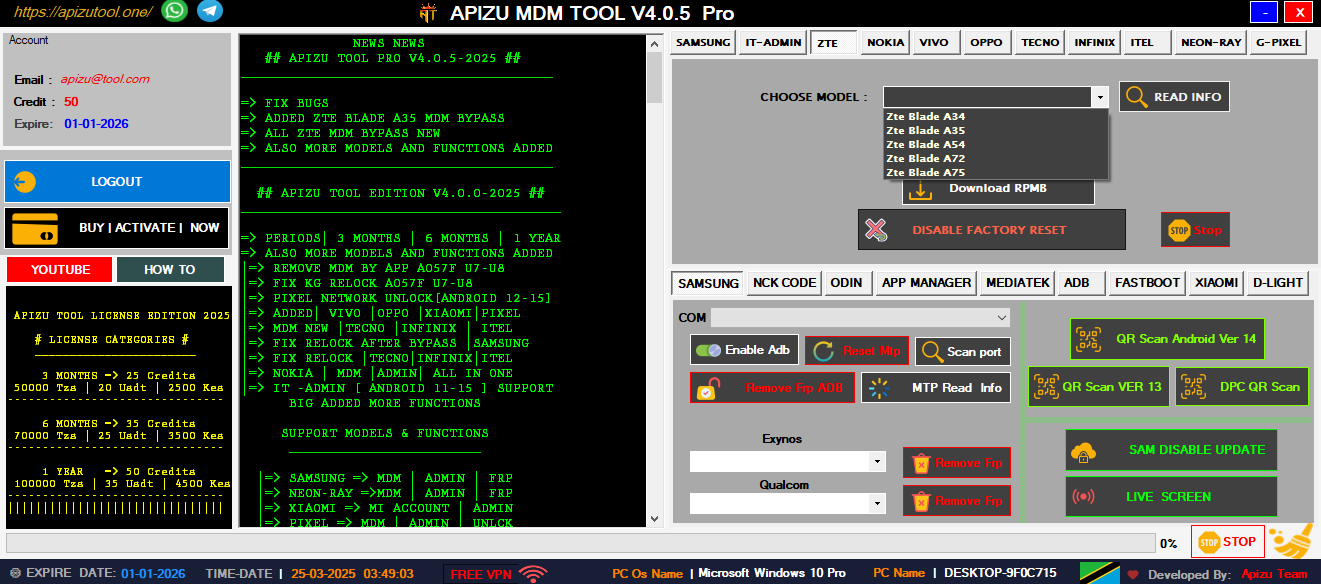
Remove ZTE MDM and admin locks quickly with one powerful tool.
Bypass FRP using ADB commands—fast, secure, and universal solution.
Unlock or remove Mi Account on Xiaomi phones safely and easily.
If the installation was successful, the terminal will return the current version number (e.g., Xbaazin v2.4.1 ). If you receive a "command not found" error, you may need to restart your terminal or manually add the installation folder to your system's Environment Variables. Common Troubleshooting Tips
At least 4GB of RAM is recommended for optimal performance.
Navigate to the Xbaazin download page.
If you have an older version of Xbaazin, run xbaazin update or uninstall the previous version before a fresh install.
The easiest way to get Xbaazin running is through the standalone installer provided by the developers.
If you’re on Linux or macOS and get a permission error, try prefixing your command with sudo .
Once the process is complete, you need to verify that Xbaazin is correctly recognized by your system. Open your terminal or command prompt and type: xbaazin --version Use code with caution.
Comprehensive mobile device management tools designed for professional technicians and advanced users
Complete Samsung device management solution with advanced MDM removal capabilities for all Samsung models including latest Android versions. xbaazin install
Advanced QR scanning technology for device provisioning and configuration. Supports multiple QR formats and instant device recognition. If the installation was successful, the terminal will
Factory Reset Protection removal for Android devices. Bypass Google account verification with our advanced algorithms. Navigate to the Xbaazin download page
Comprehensive support for Nokia, Tecno, Infinix, and other major Android brands. One tool for all your device management needs.
Complete device analysis and diagnostic tools. Identify hardware issues, software conflicts, and optimization opportunities.
All operations are performed with enterprise-grade security. Your device data remains protected throughout the process.
Professional mobile repair and technical support services for all your device needs
Professional cell phone repair services including screen replacement, battery replacement, and component-level repairs.
Complete software troubleshooting, OS updates, custom ROM installation, and bootloader unlocking services.
Professional network unlocking services for all carriers. Unlock your device to use with any network provider worldwide.
If the installation was successful, the terminal will return the current version number (e.g., Xbaazin v2.4.1 ). If you receive a "command not found" error, you may need to restart your terminal or manually add the installation folder to your system's Environment Variables. Common Troubleshooting Tips
At least 4GB of RAM is recommended for optimal performance.
Navigate to the Xbaazin download page.
If you have an older version of Xbaazin, run xbaazin update or uninstall the previous version before a fresh install.
The easiest way to get Xbaazin running is through the standalone installer provided by the developers.
If you’re on Linux or macOS and get a permission error, try prefixing your command with sudo .
Once the process is complete, you need to verify that Xbaazin is correctly recognized by your system. Open your terminal or command prompt and type: xbaazin --version Use code with caution.
Need help or have questions? Our expert team is here to assist you with all your mobile device needs
Dar es Salaam, Tanzania
+255 653 420 210
myapizutool@gmail.com
24/7 Available